
How to Use an AI Email Writer: A 5-Step Workflow for Business Email (2026)
A five-step workflow for using an AI email writer at work: pick the right emails, gather facts, write a specific prompt, edit hard and protect private data.
The safest way to use an AI email writer is to treat it as a drafting assistant, not the sender: you supply the facts, the goal and the tone, the tool produces a first version, and you check every name, number, date and promise before you hit send. That works for replies, follow-ups, meeting recaps and polite-but-firm messages. It does not work when you paste in a vague request and send whatever comes back.
This guide is a five-step workflow for business email in the U.S. workplace, built around features Google documents for Gmail (Gemini and Help me write), plus a prompt template that works in any chat assistant. It is a process guide, not a test: we did not benchmark tools against each other, and we make no claims about which one writes best. For bulk marketing email, read the CAN-SPAM and Gmail checklist for AI-written promotional email instead; the rules there are stricter than for one-to-one messages.
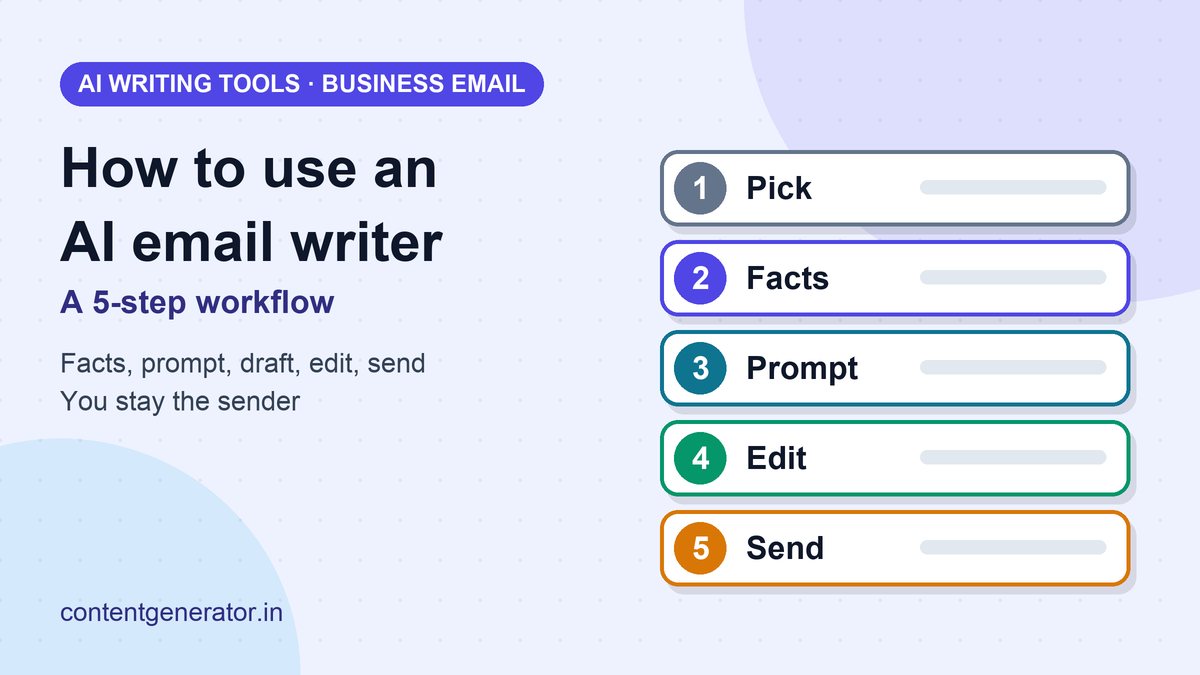
The Short Answer
- Pick the right job. Replies, follow-ups, recaps and rewrites are good fits. Sensitive news, legal commitments and anything you cannot verify are not.
- Gather the facts first. Recipient, goal, deadline, numbers and the one action you want. The tool cannot know what you did not tell it.
- Write a specific prompt. State who, why, tone, length and what must not appear.
- Edit hard. Check facts, cut filler, restore your own voice.
- Protect private data and send it yourself.
Step 1: Choose Emails Where AI Helps
An AI email writer saves the most time on messages where the structure is predictable and the facts are already in your head or on the screen.
| Good fit | Keep it human |
|---|---|
| Replying to a long thread you have just read | Layoffs, firing, bad news about a person |
| Follow-up after a meeting or call | Contract terms, pricing promises, legal or HR matters |
| Rewriting a rough draft for tone and length | Apologies where the details matter |
| Polite reminders and scheduling | Anything that states a fact you cannot verify |
| Turning notes into a clear summary | Messages that rely on a relationship only you have |
Step 2: Gather the Facts Before You Prompt
Most weak AI emails are weak because the prompt was thin. Before you open the tool, write down five things in plain words:
- Who the reader is and what they already know.
- Goal: the one thing you want them to do or understand.
- Facts: dates, amounts, names, order or ticket numbers, exactly as they should appear.
- Deadline or next step.
- Tone: warm, neutral, firm or formal.
If you cannot fill in the facts, the email is not ready to draft. That is the same discipline as a content brief; our AI content brief checklist covers the habit in more detail.
Step 3: Write a Prompt That Names the Constraints
A reusable template keeps drafts consistent. Paste the facts after it:
Draft a reply to the email below from [role]. Goal: [one sentence]. Tone: [warm / firm / formal]. Keep it under [120] words. Include only these facts: [list]. Do not invent dates, prices or commitments. End with one clear next step. If information is missing, tell me what you need instead of guessing.
The last two lines matter most. They tell the tool to stop rather than fill gaps with plausible but made-up details. For a deeper look at prompt structure, see our six-part AI prompt writing formula.
Google's Gmail Help gives short examples of the same idea: asking Gemini to draft an email that summarizes progress on a named project, or to refine a chat message so it is "professional and concise." Both name a subject and a quality bar, which is the pattern to copy.
Step 4: Use the Tool Built Into Your Inbox
You do not need a separate app if your email already has one. Google's Gmail Help lists these AI features for Gmail:
- Help me write: draft new emails or refine existing text from a prompt.
- Proofread: suggestions beyond spelling and grammar for conciseness, tone and style.
- Suggested replies: detailed, context-aware reply options at the bottom of an email thread.
- Summarize and draft: ask Gemini to summarize a thread, draft a response or suggest replies.
Google also notes that Gemini in Gmail requires an eligible Google Workspace or Google AI plan, so availability depends on your account. On iPhone, Apple's Writing Tools offer rewriting inside Mail; our Writing Tools vs Write with Siri guide explains what each does. If you draft in Google Docs first, what Gemini in Docs can and cannot do is the companion read.
A practical order that works in any of these tools: ask for a draft, then use separate follow-up prompts to shorten it, soften or firm up the tone, and fix one problem at a time. Changing everything in one prompt tends to produce a different email rather than a better one.
Step 5: Edit Like the Sender, Because You Are
You are the person who signs the message. Run this check before sending:
- Facts: compare every date, number, name and link against your source. AI drafts can sound confident and still be wrong.
- Promises: delete any commitment you did not intend to make, such as a refund, a deadline or a discount.
- Voice: replace stock phrases ("I hope this email finds you well") with how you actually write to this person.
- Length: cut it by a quarter. First drafts from AI tools tend to run long.
- One ask: the reader should know the next step from the last two lines.
- Subject line: make it specific enough to find again in a search.
Our guide to fact-checking AI content gives a repeatable method, and the AI content editing workflow shows how to edit a draft so it reads like one person wrote it.
Privacy: What Not to Paste
An email draft often includes customer names, account details or internal plans. Before pasting anything into an AI tool, check your employer's policy, then apply a simple rule: if you would not forward it to an outside contractor, do not paste it into a tool your company has not approved.
The protections differ by product and plan. Google's Workspace privacy documentation says that, for Workspace accounts, Gemini interactions stay within your organization and content is not human reviewed or used for generative AI model training outside your domain without permission. That statement covers Google Workspace; it does not describe other tools, so read the data terms of each assistant you use and prefer the account type your employer controls. When you are unsure, replace names and numbers with placeholders such as [Customer] and [Amount] in the prompt and fill them in yourself afterward.
Common Mistakes
- Sending the first draft. It is a starting point, not a finished email.
- Asking for "a professional email" with no facts. You get generic filler and often invented details.
- Using AI for every message. Colleagues notice a uniform tone; keep short, personal notes in your own words.
- Letting it decide the commitment. Deadlines, prices and policies are your decisions.
- Skipping the subject line and sign-off. These are the parts readers see first and last.
A Worked Example
Suppose a client asks when a revised proposal will arrive. Your facts: revised draft goes out Thursday, includes the updated scope you discussed on Monday, and you need approval by the following Wednesday.
A weak prompt is "write a professional reply about the proposal." A strong prompt uses the template: reply to the client's question, warm but concise, under 100 words, include only Thursday delivery, the updated scope from Monday's call and the Wednesday approval request, no invented details. The result should read as a short confirmation with one clear next step. Your edit pass then checks the three dates and removes anything you did not say.
Sources
- Collaborate with Gemini in Gmail, Gmail Help (Google)
- Gemini features in Google Workspace apps, Gmail Help (Google)
- Generative AI in Google Workspace Privacy Hub, Google Workspace Help
Google pages were read on November 11, 2026. Features and plan requirements change, so confirm current availability in your own account.
Frequently asked questions
Is it okay to use AI to write work emails?
Yes, as long as you treat the output as a draft. Check every fact, remove promises you did not intend to make, follow your employer's AI policy and send the email yourself.
What AI features does Gmail have for writing emails?
Google's Gmail Help lists Help me write (draft or refine text from a prompt), Proofread, Suggested replies and Gemini's summarize-and-draft. Gemini in Gmail requires an eligible Google Workspace or Google AI plan.
What should I never paste into an AI email writer?
Anything you would not share with an outside contractor, such as customer personal data, account numbers, unreleased plans or legal matters, unless your employer has approved the tool. Use placeholders like [Customer] and fill them in afterward.
How do I stop an AI email from sounding generic?
Give it specific facts, a named tone and a word limit, then edit the draft in your own voice. Replace stock openers and cut the length by about a quarter.
Can AI write marketing emails?
It can draft them, but bulk promotional email has extra legal and deliverability requirements. Follow CAN-SPAM and Gmail sender rules before sending to a list.